Summer is just around the corner, and if you have been following Copilot updates at all, you already know the pace is relentless. A new feature drops every other day, sometimes without so much as a heads up. Between PTO, kids out of school, and family vacations, staying caught up can feel impossible.
That is exactly what this series is for. Every two weeks this summer, I will be rounding up the latest Copilot updates so the busy professional does not have to choose between a beach day and keeping up with Microsoft. Consider it your Copilot briefing for the season.
And for Lesson 1? We are talking about learning. Copilot has been quietly (and not so quietly) shipping some learning-centric updates this season, and these are worth studying up on.
1. Infographics in Copilot Notebooks
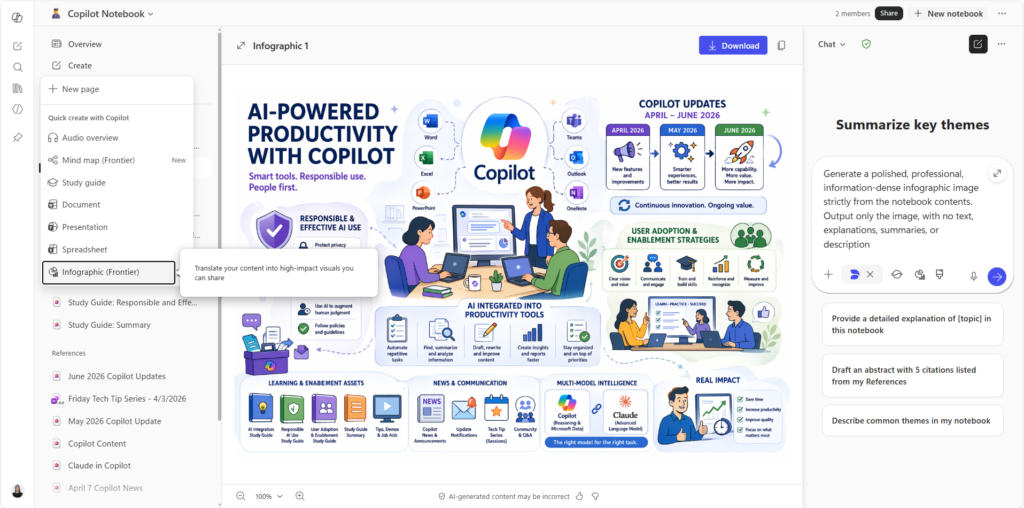
If you already use Copilot Notebooks to organize research, project context, or meeting notes, this one is going to feel like a natural next step. If you don’t use Copilot Notebooks yet, I broke it down in one of my prior blog posts. Copilot Notebooks now lets you transform notebook content into clear, structured visual summaries generated from grounded references. No manual design work required.
The infographic is built directly from the content and references already living in your notebook. You can preview it, copy it, download it for reuse, and it gets automatically saved back into the notebook. Think of it as Copilot doing the “now make this a one-pager” step for you.
The feature is currently in public preview, with general availability worldwide expected between late June and mid-July 2026. So if you do not see it yet, it is coming.
Source: Microsoft Tech Community Blog | What’s New in Microsoft 365 Copilot | May 2026
2. Learning Agent is now GA
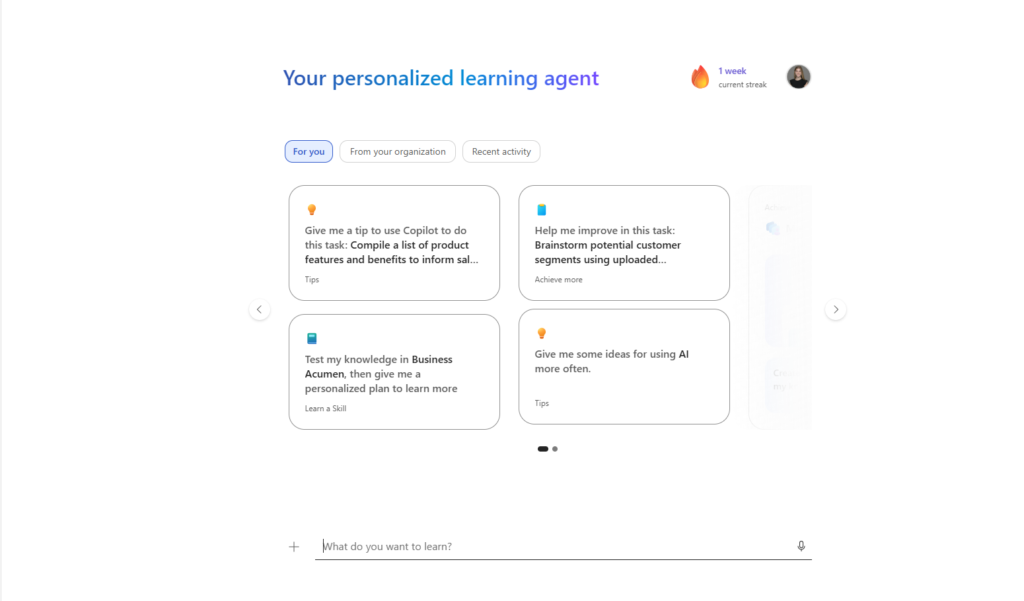
As someone with an insatiable learning desire and a laundry list of things I want to learn, this one is my favorite. The Learning Agent builds a personalized learning experience around you, right inside Microsoft 365, without asking you to open a separate platform or app.
It brings together relevant tips, skill assessments, customized learning plans, certifications, and roleplay practice so you can learn by doing directly within your workflow and continuously improve over time. Think of it as having a personal coach that actually knows what you do for work.
Powered by Work IQ and integrated with AI Skills Navigator, the Learning Agent is designed to help organizations accelerate AI upskilling and reskilling directly in the flow of work. You can see this in the screenshot above — the agent surfaces prompt cards tailored to your role, gives you skill gap analysis, lets you set a preferred difficulty and plan duration, and even tracks your streak.
A few things worth knowing before you dive in: the full experience requires both a Microsoft 365 Copilot license and a Viva Learning license, so if some features look grayed out for you or your users, that is likely why.
Start by trying this prompt:
## Goal
Help me achieve the following outcome: [DESCRIBE YOUR GOAL – e.g., “understand core concepts,” “prepare for certification,” “troubleshoot issues,” “gain practical skills”]
## Context / Here is my background and situation:
– Current knowledge level: [BEGINNER / INTERMEDIATE / ADVANCED]
– Relevant experience: [OPTIONAL DETAILS – e.g., tools used, job role, prior knowledge]
– Why I’m learning this: [REASON OR USE CASE]
## Source / Focus Areas When teaching or answering, prioritize:
– Key concepts: [LIST SPECIFIC AREAS OR LEAVE BROAD]
– Tools / platforms: [E.g., Microsoft Entra, Security Center, Viva Insights]
– Real-world scenarios: [YES/NO or SPECIFIC CONTEXT]
– Any preferred sources or frameworks: [OPTIONAL]
## Expectations
Structure your responses as follows: 1. Clear explanation of the concept in simple terms 2. Step-by-step breakdowns when applicable 3. Practical examples or real-world use cases 4. Key takeaways or summary 5. Optional: quiz questions, practice exercises, or next steps
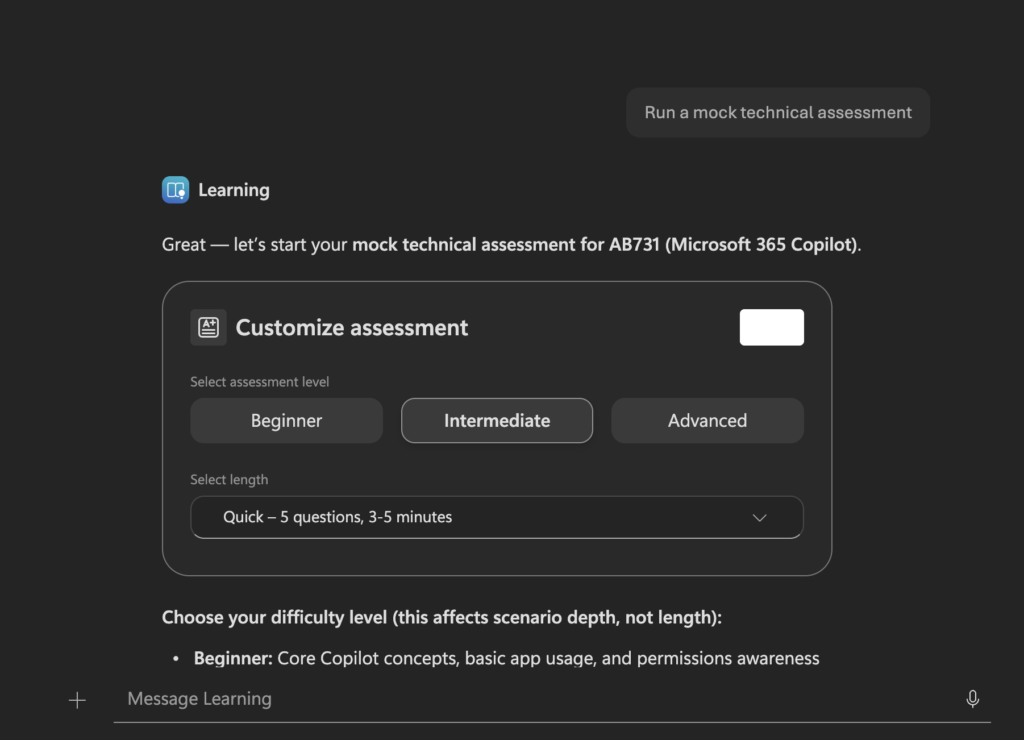
When I was testing out the Learning Agent, I asked it to run a mock technical assessment to help me study for the AB-731 exam. It did not just quiz me, it walked me through each question in an interactive chat format, told me whether my answers were right or wrong, and gave me a detailed explanation of why. It felt less like a practice test and more like having a study partner who actually knew the material.
For full specs and deployment instructions, visit the learning agent overview deployment steps.
3. Use Copilot to explain selected slide content in PowerPoint Live
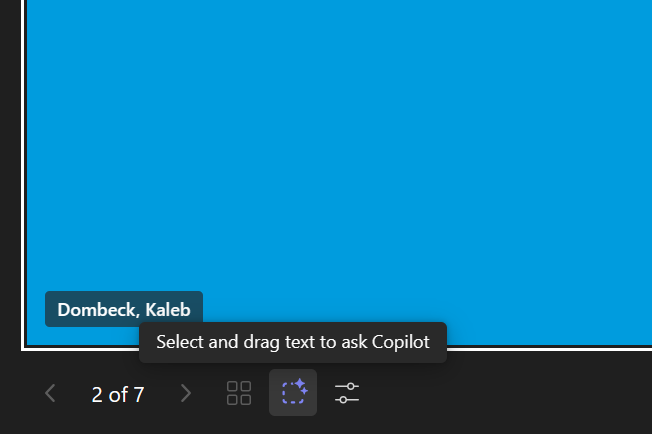
We have all been in a meeting where someone drops an acronym or a term on a slide and you have no idea what it means, but you also do not want to be the person who stops the whole presentation to ask. Copilot just quietly solved that problem.
When someone is sharing a presentation using PowerPoint Live in a Teams meeting, attendees can now select and drag text directly on the slide to ask Copilot for an explanation. It is private, it is instant, and the presenter never knows you had a question. No interruptions, no awkward hand raises, no frantic Googling in another tab.
This works specifically when the presenter is sharing via PowerPoint Live, not a generic screen share, so it is worth knowing that distinction going in. You will also need a Microsoft 365 Copilot license to access it.
The feature is still rolling out and is expected to complete worldwide by late June 2026, so if you do not see it yet, keep an eye out.
Source: Microsoft 365 Roadmap | Use Copilot to explain selected slide content in PowerPoint Live
Which of these learning updates are you adding to your summer syllabus?