
Lesson 3 is live, and it’s the “Copilot actually knows who you are” edition.
Three things shipped around the same time, and they’re all pointing the same way: more model choice, branding that actually holds up, and prompts built for how your org really works. Let’s get into each one.
Increased Model Choice
Microsoft keeps adding options for which model does the work in Copilot, and two recent updates are worth looking at together.
1. Claude Sonnet 5 joins the model lineup. On July 2, Anthropic’s Claude Sonnet 5 started rolling out in Microsoft 365 Copilot, landing first in Copilot Cowork and Copilot in PowerPoint. Microsoft’s calling it the everyday option for anything with multiple steps, planning something out, working through context, or actually building a deliverable instead of just answering one question.
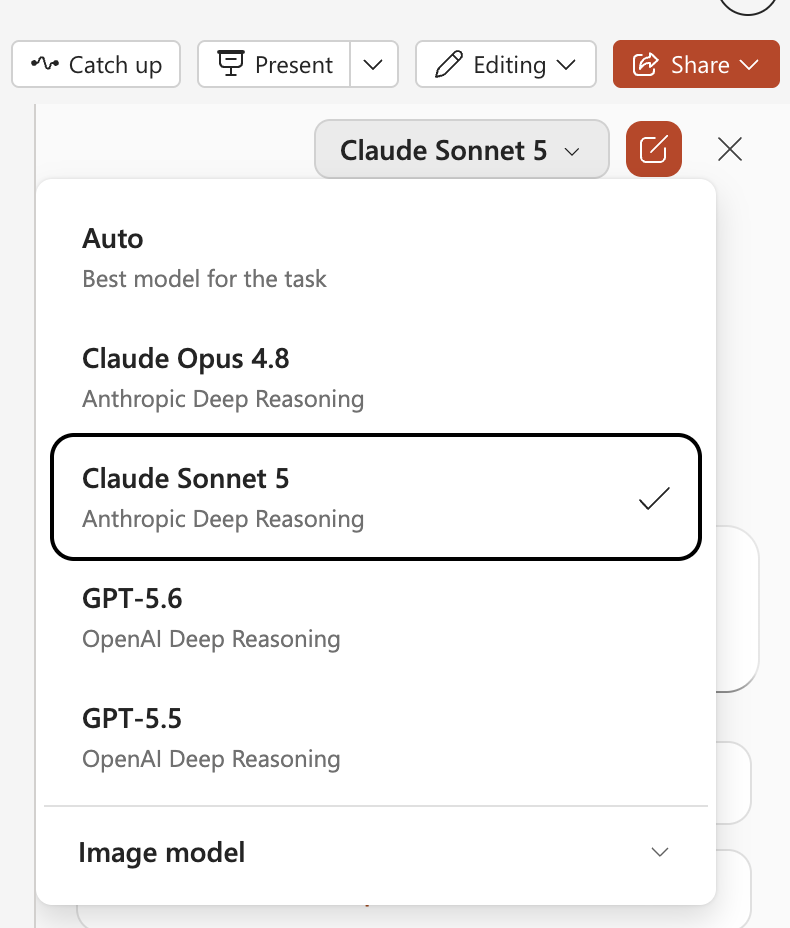
A few things worth knowing about Sonnet 5:
- What is it? Anthropic’s newest Sonnet model, roughly as capable as Opus 4.8 but cheaper to run. Basically, it’s the model to reach for when you need Copilot to think through something instead of just answering a single ask.
- When do you use it? Anytime the task has more than one moving piece: building a first draft from scratch, cleaning up a document that’s turned into a mess, or pulling a bunch of scattered files into something that makes sense. If you just need a quick answer, don’t bother switching, Auto is fine.
- Sample prompt:
“Using the attached project notes and the client’s brand kit, build a first draft status update deck for our Q3 engagement. Include a summary slide, a timeline of completed milestones, open risks, and next steps. Match the tone of our previous client decks and flag anything in the notes that seems incomplete or needs a decision from me before I present.”
2. Model choice landed in Word too. Copilot in Word now lets users choose Anthropic models instead of defaulting to OpenAI, giving writers more flexibility for tasks like rewriting a client email or restructuring a document that’s gotten messy. The model picker is quietly showing up across the apps people live in every day.
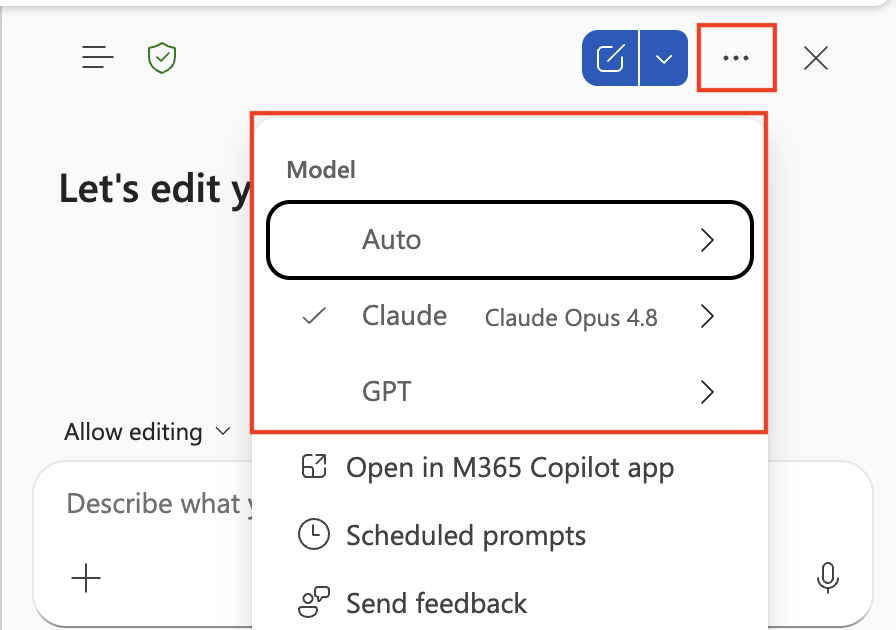
This pairs well with my Copilot Summer School Lesson 2 article. Copilot isn’t just picking a model anymore, it’s letting the user pick the right model for the task, app by app.
Branding That Finally Sticks in PowerPoint
Brand Kits in PowerPoint rolled out worldwide by late June for Copilot Premium users, and I’ve wanted this since Copilot started theming decks in the wrong blue. If you’ve ever watched Copilot generate a “professional looking” deck that was somehow every shade of blue except your client’s actual blue, this fixes that.
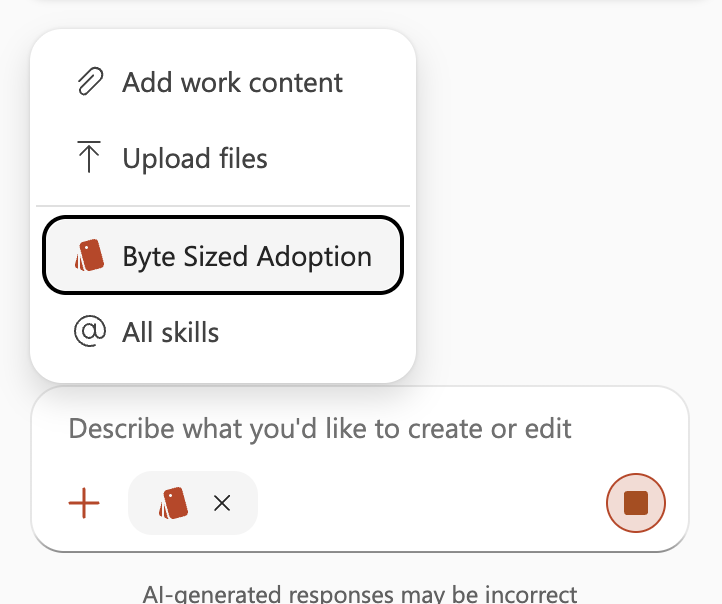
A few details that matter for consulting work specifically:
- Brand Kits are not the same thing as SharePoint Brand Center. Brand Center governs SharePoint branding. Brand Kits, inside Create, are what feed Copilot your logos, colors, fonts, and imagery so it can generate on-brand images and PowerPoints. Two different systems, easy to mix up.
- You can run multiple brand kits. For anyone juggling more than one client tenant or business unit, this is the whole ballgame. Set up a kit per client and stop manually re-theming every deck Copilot spits out.
- Templates still come first. Edit with Copilot leans on your templates as the primary source of truth, then layers the brand kit on top to reinforce colors, fonts, and visual style. If a client has no templates, Copilot still works, it just has less to work with.
Organizational Prompt Library: Bring Your Orgs Priorities to a Blank Canvas
Organizational Prompts started rolling out worldwide in early July, with completion expected by late July. Admins can now create, publish, and pin prompts that show up automatically inside Copilot Chat, Teams, and Edge, and they’re autosuggested as people type. I get asked this all the time: how do you get people to use Copilot well instead of everyone just figuring it out on their own. This is Microsoft’s answer to that.
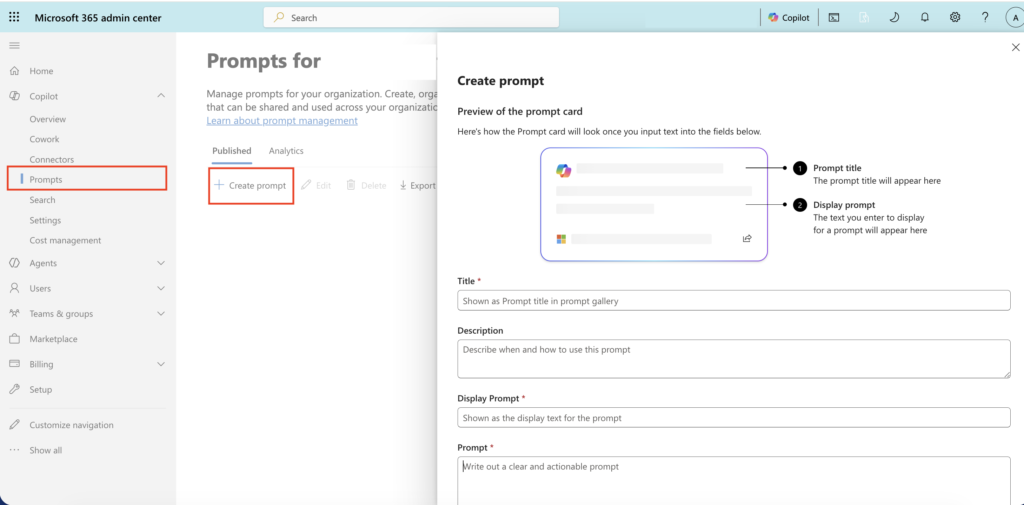
Here’s what’s useful to know:
- There’s a cap, and a pin limit. You can publish up to 1,000 prompts per tenant, but only 4 can be pinned to the top where users see them without digging. Curate accordingly.
- Nothing shows up until you publish something. No curated prompts appear to end users until at least one prompt is published. A curated prompt also can’t be saved as a draft, it’s either published or canceled.
- The importer ships with nothing in it. Microsoft built a bulk CSV import path for rolling out prompts at scale and then didn’t include a single starter prompt. If you’re planning a rollout, budget time to build the library, because nobody’s handing you one.
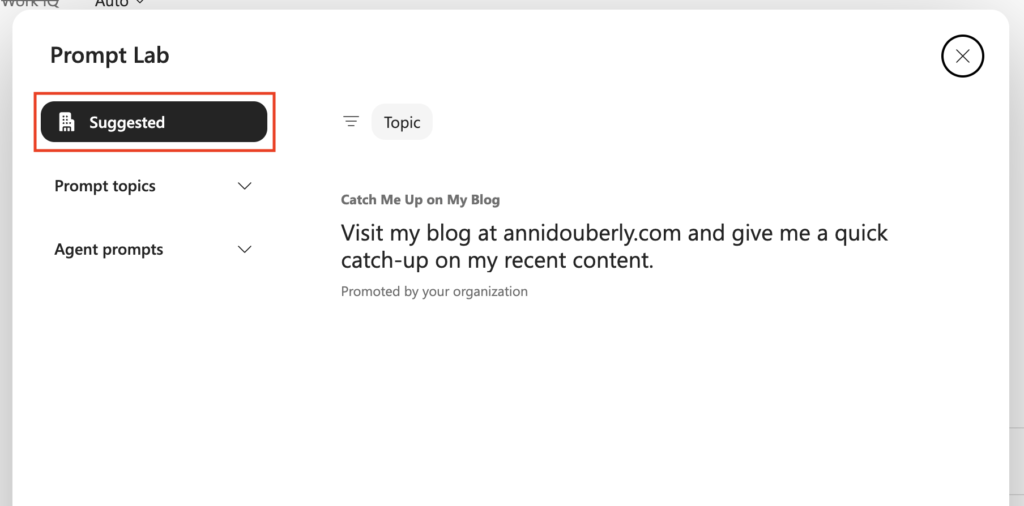
- This is not the same as the Prompt Gallery. The Prompt Gallery is the personal or team-level version: users save their own prompts, or share one into a Team, and it lives across three tabs, Microsoft-suggested, your own, and whatever your Team has shared. But someone still has to run the prompt, save it, and hand it off to the Team manually. That’s fine for a few power users, but it never really spreads past them. Organizational Prompts skips all of that. Admins publish it once at the tenant level and it just shows up for everyone, no one has to go find it or share it themselves. Read more here: Microsoft Learn | Where organizational prompts are displayed to users
The Syllabus So Far
That’s Lesson 3. A new model in the lineup, branding that holds up, and a way to get everyone using Copilot the same approved way instead of everyone winging it on their own.
On their own, none of these are huge news. But put them together and you can see where this is going. Copilot is starting to feel less generic and more like it’s actually built around your org.
If you haven’t touched any of these yet, pick one. Set up a brand kit for a client. Try Sonnet 5 on something with a few moving pieces. Ask your admin if organizational prompts are on the roadmap for your tenant.