
I got asked the same question about Copilot domain exclusion by two different clients this month: “Can we stop Copilot from pulling answers from that one site?”
Both times it was the same story. Copilot Chat was grounding responses in web results from a source nobody trusted. A competitor’s blog. An outdated third party site. A page that used to be authoritative and just isn’t anymore. And both times, the client assumed the answer was “no, that’s just how web grounding works, you live with it.”
Microsoft just launched Copilot Domain Exclusion (Roadmap ID: 503144) to fix this exact issue. It’s live, documented, and it’s opt in, meaning every tenant that hasn’t configured it yet is currently running Copilot with zero control over which external sites feed into its answers.
What Copilot Domain Exclusion Actually Does
Copilot Domain exclusion gives admins a blocklist (up to 1,000 entries) that Copilot and Copilot Chat can’t pull from when they reach out to the open web for an answer. You’re not disabling web search tenant wide, and you’re not filtering search results for your users elsewhere in the Microsoft 365 stack. This is scoped specifically to what Copilot is allowed to pull from when it reaches outside your tenant for an answer.
You can go two levels deep on subdomains, so you’re not stuck excluding an entire root domain when the problem is really one subsection of a site. That granularity matters more than it sounds like it should. I’ve seen tenants where the concern wasn’t “block this whole vendor’s website,” it was “block their outdated legacy docs subdomain, but leave the current one alone.” Domain exclusion handles that.
Here’s the catch I flag for every client, because it changes how you frame this to leadership: this only reaches into one of Copilot’s answer sources. Excluded domains are shut out of web page grounding, but a source you blocked can still show up if it surfaces through news results instead. So when someone on the leadership side asks “does this mean Copilot will never cite that domain again,” the honest answer is no, it’s a strong filter on one channel, not a blanket ban. Set that expectation up front and you’ll avoid an awkward conversation later.
There’s No Toggle. It’s a Script.
This is the part that surprises people who expect everything in the Copilot admin experience to live behind a settings pane. It doesn’t, not yet anyway. Domain exclusion runs through a PowerShell script called ConfigureTenantDomainExclusions.ps1, downloadable from Microsoft. You need to be signed in as a Search Administrator or Global Administrator to run it. Additionally, you’ll need Windows PowerShell 5.1 or PowerShell 7+. The script will install the Az. Accounts module automatically if your environment doesn’t already have it, which is a nice touch if you’re not living in PowerShell every day.
If you hit an execution policy error the first time you try to run it, that’s normal for a lot of admin environments locked down by default. You’ll temporarily need to open execution policy for the process scope before it’ll run.
The Actual Workflow
Once you’ve got the script downloaded and unzipped somewhere accessible, here’s the sequence for getting domain exclusion configured:
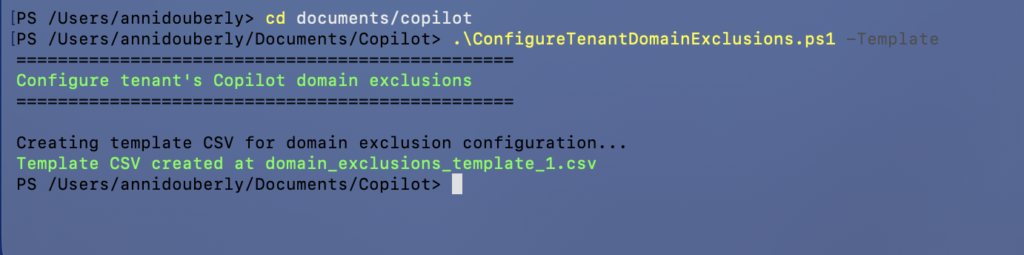
- Generate a template CSV first. There are two ways to do this:
- Run the script’s built-in template generator:
.\ConfigureTenantDomainExclusions.ps1 -Template- This creates a CSV for you automatically. In my test run, it landed as
domain_exclusions_template.csvin the same folder.
- Create the CSV from scratch:
- Your CSV file must contain the following columns:
- Domain: The URL to block
- Example values: https://www.example.org/path
- IncludeSubPages: Whether or not to include subpages
- Example values: true or false
- Domain: The URL to block
- Your CSV file must contain the following columns:
- Run the script’s built-in template generator:
- Fill in your Domain and IncludeSubPages columns. Domain accepts either a bare domain or a full URL. IncludeSubPages is a Boolean, True or False, depending on whether you want the whole domain tree excluded or just the exact page.
- Push it live using the Create flag for a brand new configuration, or Update if you’re modifying one that already exists. One heads up before you touch Update: it replaces your whole configuration rather than adding to it.
- Brand new configuration:
.\ConfigureTenantDomainExclusions.ps1 -Create -FromFile "input.csv" - Updated an existing configuration:
.\ConfigureTenantDomainExclusions.ps1 -Update -FromFile "updated_domains.csv"
- Brand new configuration:
Export your current configuration to CSV any time using the Get flag. This becomes your audit trail.
Here’s the one thing that trips up almost everyone the first time they touch this: running Update does not merge your changes into the existing exclusion list. It replaces the entire configuration with whatever is sitting in your CSV file. If you don’t export your current config before you start editing, and you’re working from an outdated or partial file, you will silently drop domains that were excluded before.
My rule for clients: always run Get before you run Update. Every single time. No exceptions, no “I’ll remember what was on the list.”
Where does Copilot Domain Exclusion Actually Fit Into a Rollout
This is the piece that gets skipped most often, and it’s the one I care about most as a consultant. Copilot adoption isn’t “flip the switch and run a training session.” The governance controls exist. Domain exclusion is one of them. Most tenants simply haven’t opted in, because none of this is on by default. Somebody has to go get it, configure it, and own it going forward.
If you’re running a data access governance review ahead of a Copilot rollout, domain exclusion belongs on that checklist right next to sensitivity labels, site permission audits, and oversharing risk assessments. Web grounding is a data source like any other feeding into Copilot’s answers, and it deserves the same scrutiny you’re already giving SharePoint permissions and label enforcement. Treating it as an afterthought is how you end up with the exact complaint I opened with: users noticing Copilot is citing a source nobody approved, and admins having no idea there was ever a lever to pull.
The Takeaway
If you’re an admin who’s fielded a “why did Copilot cite that” complaint, this is worth an hour of your time this week. Download the script, run Get to see your current baseline (it’ll be empty if you’ve never touched this), build your exclusion CSV, and push it live.
Byte Sized Adoption tip: export your current config before every single update, no exceptions. Future you will thank present you.