What if that forgotten SharePoint list could turn into a SharePoint live dashboard with one prompt? That’s what Copilot in SharePoint’s August 2026 update actually does. Every site has a list like this: a vendor tracker nobody’s opened since last winter, a project list abandoned the second the project wrapped. It sits there doing nothing until someone needs a number from it and has to go digging.
That’s the list I want you to think about while you read this, because Copilot’s August update is about to change what that list is capable of. You can now point Copilot at a list and have it generate an interactive HTML SharePoint Live dashboard on the spot, one that keeps pulling from the list itself instead of freezing the moment you build it. Update a row, the dashboard reflects it. No re-export, no rebuild, no “let me regenerate that report real quick.” Pair that with the new page button web part, which lets you drop a one-click prompt trigger right on a page, and you’ve got a real reason to start using your lists again.
That’s what we’re building today: a Skill that turns a list into a live dashboard, and a homepage button that puts actionable insights just one click away.
Here’s what you’ll walk away with by the end of this guide (no gatekeeping):
- A reusable SharePoint Skill that turns any list into a live dashboard
- A Copilot action button on your homepage that runs it in one click
- The prerequisites you need in place before any of this works, so you’re not troubleshooting instead of building
Prerequisites
Get these sorted first. Skip one and you’ll burn an hour convinced Copilot is broken when really you just weren’t set up for it.
- A Microsoft 365 Copilot license
- Agent Assets enabled on your site. Skills live as Markdown files inside this library, at a path structured like
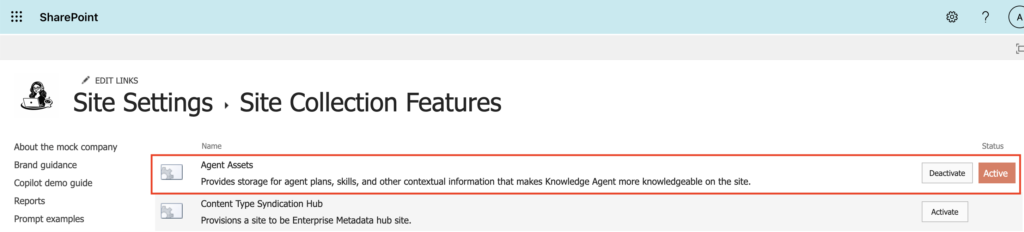
/Agent Assets/Skills/<name>/SKILL.md. If that library doesn’t exist on your site yet, go to your site collection settings to enable it:- Step 1: Setting Gear (top right corner) > Site Information > View All Site Settings > Site Collection Features
- Step 2: Enable the Agent Assets library
3. A list that’s actually worth building on. A dashboard is only as honest as the list underneath it. Clean the list first. Future you, and everyone who clicks that button after you, will thank present you. Before you prompt Copilot for a dashboard:
- Clear out duplicate or dead rows
- Fix vague column names. “Status” beats “Col3.” Copilot reads your columns, so name them like you mean it
- Make sure the data reflects reality, not a snapshot from three months ago
4. A quick governance check before you build. Copilot respects whatever permissions already exist on the list and site, it doesn’t fix them. If sharing links have gotten loose over time or the site’s permission inheritance is broken, a live dashboard just makes that overshared data easier to find, not harder. Before you build, do a quick pass on who actually has access to the source list. If you’re not sure how, that’s a five minute check worth doing before you’re one click away from surfacing it to your whole site.
Additional Note: You’ll need at least Edit access to build the Skill and place the button.
Step 1: Build the HTML SharePoint Live Dashboard Skill
Before we set up a SharePoint Skill, let’s understand what a skill actually is and how it relates to Copilot.
A skill isn’t a separate tool bolted onto Copilot. It’s Copilot’s own building blocks, chained into a sequence of steps and saved into a markdown file in the agents asset library so you don’t have to re-explain them every time. When you ask Copilot to summarize a list once, that’s a prompt. When you save that same request as a repeatable workflow that anyone on the site can trigger by name, that’s a skill.
That distinction matters here because a SharePoint live dashboard you build once in chat disappears into your history. A dashboard saved as a skill sticks around, and it’s reusable on any list, not just the one you built it on.
With a clean list and the Agent Assets library set up, you’re ready to stop treating this as a one-off prompt and start treating it as an asset your whole site can use.
Here’s how:
- Open the list and launch Copilot directly from that view.
- Ask it to build the dashboard. Something like:
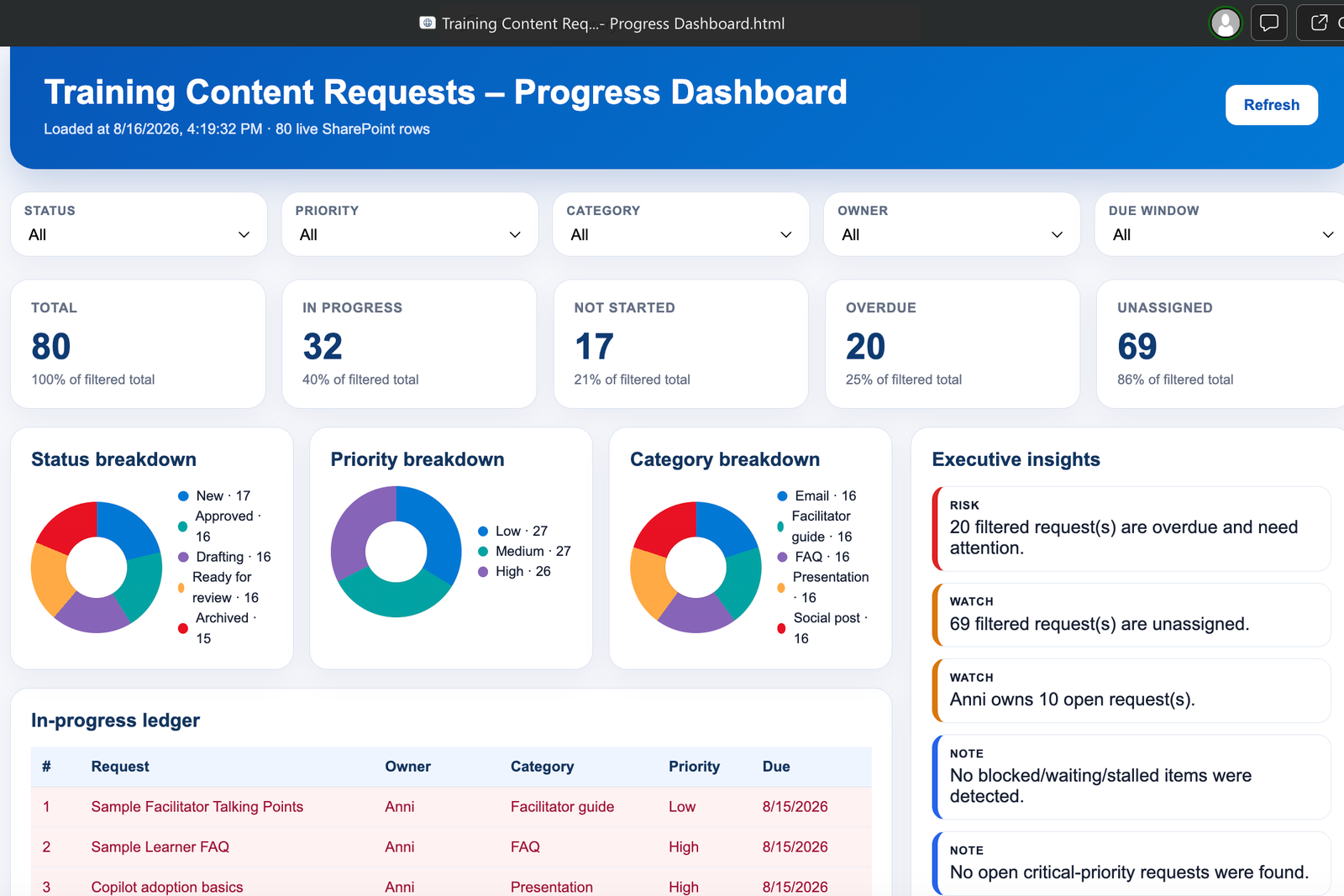
Create an HTML dashboard for __________ list that creates an executive Progress Dashboard. IncludeKPI cards, round donut charts, in-progress ledger, executive insights, a live refresh button, and filters. Save it in the Reports library. - Look at what comes back and ask copilot for changes on it. I recommend being verbose as Copilot cannot read between the lines. Ask Copilot to change the grouping, adjust columns or views shown, until it’s something you’d actually want pulled up every Monday, not just something that looks good the first time.
- Save it as a Skill. Don’t let it die in your chat history. Give it a clear name it for what it does. “Live List Dashboard” will age a lot better than “Q3 Vendor Thing.” To do this, ask Copilot:
Save this dashboard as a skill and name it _____.
Before the skill is saved, it will ask you if you want it to be created as a site skill (for everyone with access to this SharePoint site) or as a personal skill (only for you). That Skill will now live in the Agent Assets library as a SKILL.md file, available to anyone with access to the site.
Your final dashboard could end up looking something like this:
That’s the actual point here. A prompt you remember is a party trick. A saved Skill is infrastructure.
Step 2: Put Your SharePoint Live Dashboard on the Homepage
A dashboard nobody opens is still a junk drawer. The difference is it’s a nicer-looking one. The new “Open Copilot in SharePoint” button action will get it somewhere people will actually see it.
- Head to your site’s homepage and open edit mode
- Add the page button web part
- Assign the “Open Copilot in SharePoint” action
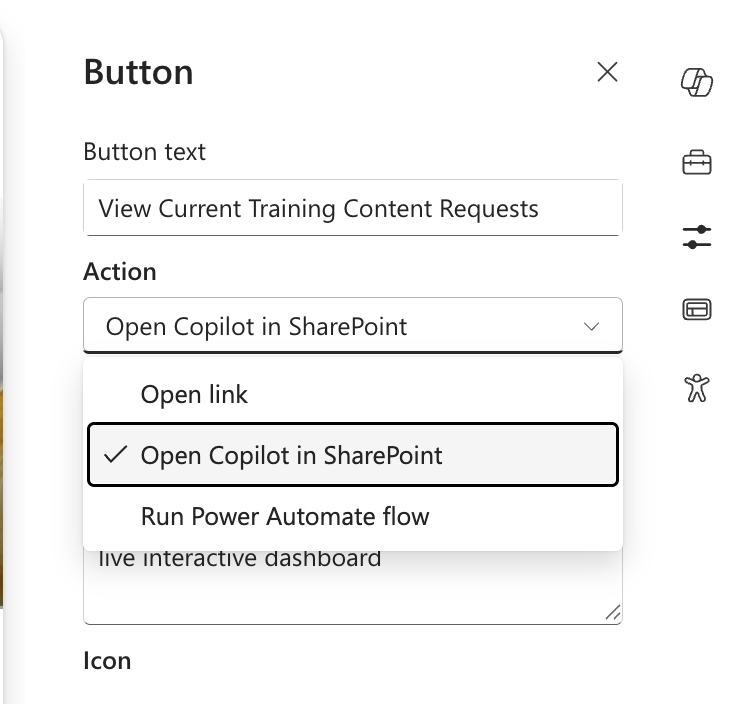
4. Give the button a prompt that will trigger your skill. I specifically asked Copilot to filter the dashboard by who clicks in the prompt so it can be applicable to who is viewing.
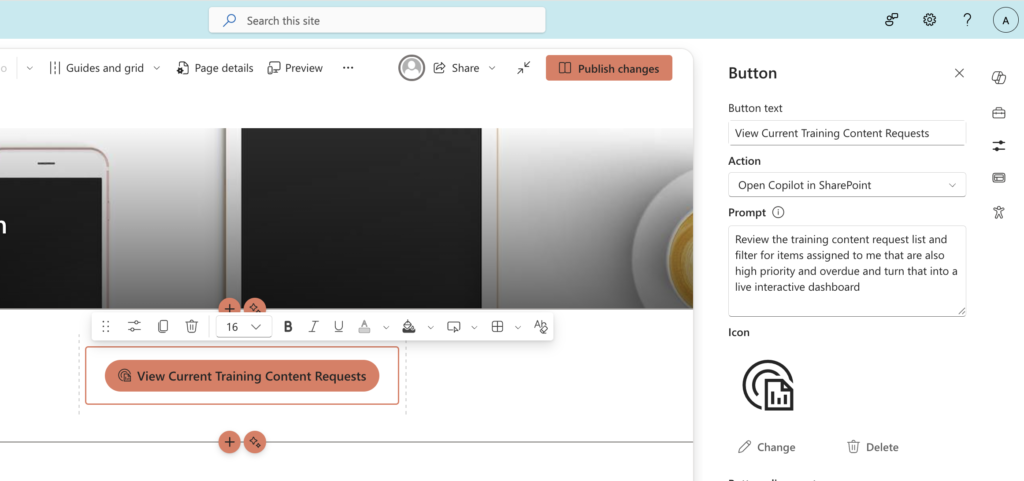
5. Write a label a team member would understand. “See Live Project Status” does more work than “Run Dashboard Skill v2.”
One click, one dashboard, current every time someone opens it, for everyone who can see that button. If your homepage audience is broader than your list’s original audience, that’s worth a second look before you publish.