
If you have ever read an email Copilot drafted for you and thought, “this is not how I talk,” you are not alone. Out of the box, Copilot writes in its own voice. It defaults to a generic, polished, slightly stiff tone that works for no one in particular. The fix is not to keep editing every draft by hand. The fix is to use Microsoft Copilot Custom Instructions to instruct on who you are, once, so it stops guessing.
Microsoft actually gives you three separate places to do this, and they get confused with each other constantly. One lives inside Outlook. One lives inside Copilot Chat. The third lives inside Copilot Cowork, and it works a little differently than the first two. None of them do the same job, and understanding how they differ is the whole trick to getting Copilot to sound like you everywhere instead of just in one app.
The Three Layers
Outlook Draft Instructions are scoped to email. They tell Copilot how you want your messages to look: greeting style, sign-off, tone, length, whether you use bullet points, whether you open with small talk or get straight to the point. This is the layer that stops Copilot from opening every message with “I hope this email finds you well.”
Microsoft Copilot Custom Instructions work everywhere Copilot shows up, not just Outlook. Set them once in Copilot Chat, and Word, Teams, and every other Copilot surface pulls from the same profile. This is the layer for the stuff that doesn’t change based on which app you’re in: what you do for a living, how technical your explanations should be, whether you want full drafts or outlines, formatting habits like bullets over paragraphs.
A Copilot Cowork skill is a completely different scope. Instead of a setting you toggle, it is a file you write, and it does not just cover tone. A skill can encode an entire way of working, tone included, so Copilot Cowork follows a defined process every time instead of improvising one.
Think of it as a general voice, a specific accent, and a full script. Custom instructions set the general voice. Draft instructions fine tune the accent for one particular room: your inbox. A Copilot Cowork skill hands Copilot the whole script for a recurring job, voice built in.
Setting up Outlook Draft Instructions
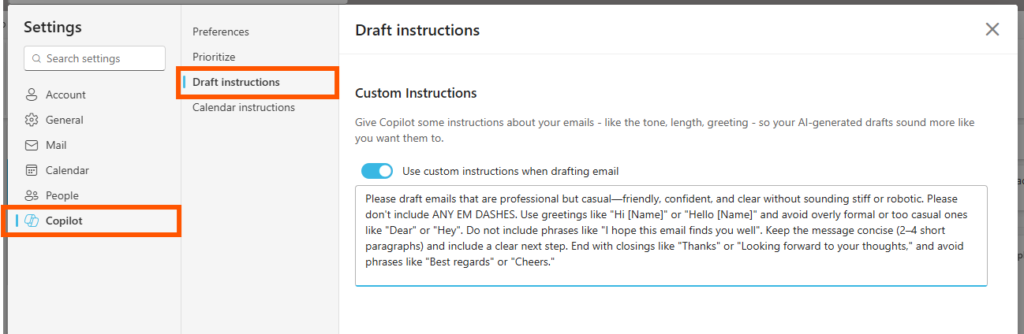
- Start a new email in Outlook.
- Click the Copilot icon’s dropdown and open Settings.
- Find Draft Instructions and flip the toggle on.
- Type out how you want your emails to sound and hit save.
The instructions do not have to be complicated. Something like “keep it under 150 words, skip the pleasantries, sign off with my first name only, use bullet points when listing more than two items” will do more work than you expect.
Here are my PERSONAL draft instructions that you can steal:
Please draft emails that are professional but casual—friendly, confident, and clear without sounding stiff or robotic. Please don’t include ANY EM DASHES. Use greetings like “Hi [Name]” or “Hello [Name]” and avoid overly formal or too casual ones like “Dear” or “Hey”. Do not include phrases like “I hope this email finds you well”. Keep the message concise (2–4 short paragraphs) and include a clear next step. End with closings like “Thanks” or “Looking forward to your thoughts,” and avoid phrases like “Best regards” or “Cheers.”
A useful trick if you are not sure what your own style even is: ask Copilot Chat to analyze the tone, structure, and language patterns in a handful of your sent emails, and have it turn that into a bulleted list you can paste directly into Draft Instructions. You are essentially asking Copilot to reverse engineer your voice from evidence instead of guessing at it.
Please note that this feature is only (as of July 28, 2026) available in new Outlook or Outlook for the Web.
Setting Up Microsoft Copilot Custom Instructions
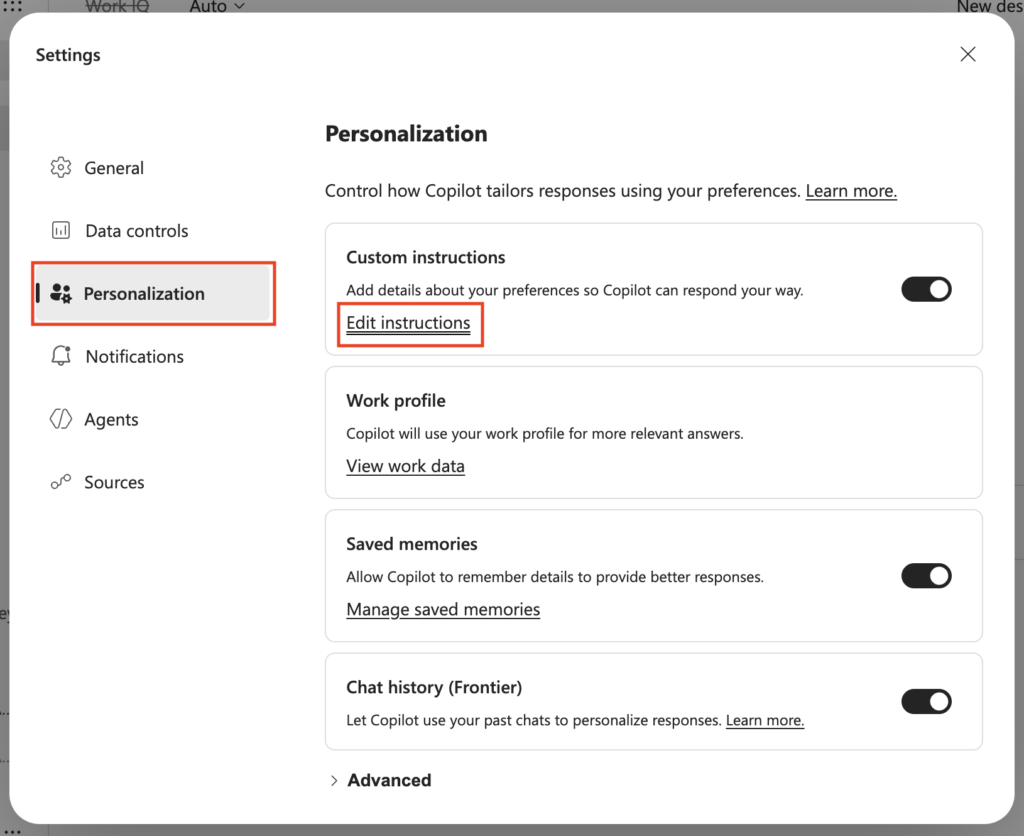
- Sign into Copilot Chat with your work account.
- Click the three-dot menu up top and open Settings.
- Click into Personalization on the left.
- Look for Custom Instructions and hit Edit.
- Tell it about your role, who you typically write for, and how you like answers formatted, then save.
This is the layer where you tell Copilot things like “I’m a consultant, keep summaries in bullet points, assume I already know Microsoft 365 basics, don’t over-explain.” Because this profile follows you across apps, it is worth spending more time getting right than the email-specific instructions. It is doing more of the heavy lifting.
Sample instructions:
I’m a ________ who works with _______ clients on ______, ______, and ______. Assume I already understand ________________, don’t define basic terms unless I ask. When summarizing, use bullet points over paragraphs. When I ask for a first draft of something, give me a complete draft, not an outline. Keep responses concise by default, and expand only when I ask for more detail. Avoid overusing emojis and corporate buzzwords like “synergy” or “leverage.”
Building a Voice Skill in Copilot Cowork
Copilot Cowork lets you build custom skills, and one of the simplest, highest value skills you can make is nothing more than a written description of how you communicate. Instead of setting a tone preference somewhere in a menu, you are handing Copilot Cowork a standing reference document it reads before it acts.
You have a few ways to build one:
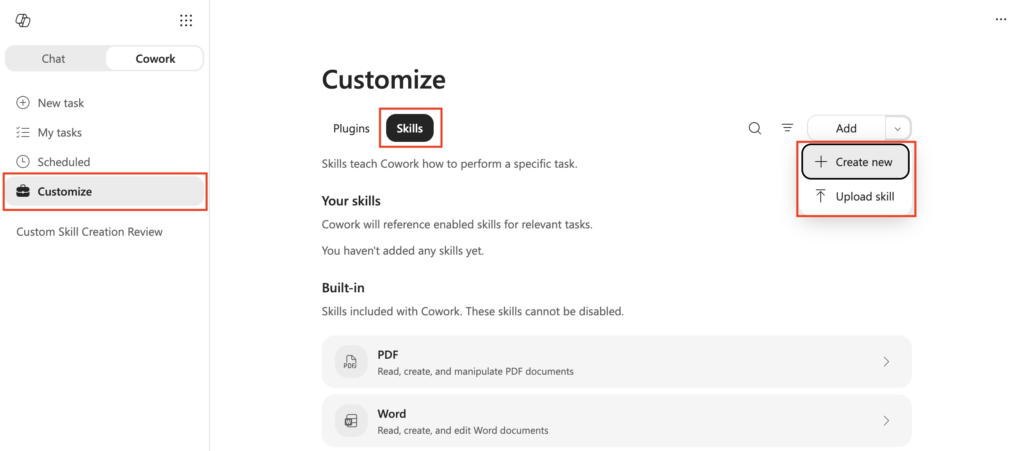
- Use the guided Customize page inside Copilot Cowork. Open Customize from the left navigation, go to the Skills tab, and select Add, then Create new. Copilot Cowork walks you through naming it, describing it, and writing the instructions as a conversation, then drafts the SKILL.md file for you.
- Just ask for it in chat. Tell Copilot Cowork you want a skill built around how you write and talk, describe your style, and let it produce the file.
- Write the file yourself. Create a Skills folder under Documents/Cowork in your OneDrive, add a subfolder for the skill, and drop in a SKILL.md file with a short frontmatter block (name and description) followed by your voice guidance in plain Markdown underneath. Example folder path: My files/Documents/Cowork/skills/my-voice/SKILL.md
Whichever route you take, the content of the skill is what matters. Describe your tone, your typical phrasing, words you never use, how formal or casual you are depending on context, and how you want things structured. This goes well beyond what a tone setting can capture, because a skill is not limited to a single field of instructions. You can give it examples, edge cases, and exceptions the same way you’d explain it to someone filling in for you.
Once it is saved, Copilot Cowork picks it up automatically at the start of a session, and it will apply your voice to whatever it produces, not just emails.
Which One Wins
Here’s how it actually plays out. Say your Microsoft Copilot Custom Instructions say to keep things under 150 words, and your Draft Instructions say something more specific, like ending every email with a one-line next step. When you draft an email in Outlook, Copilot uses both. But where they’d clash, the more specific setting wins: Draft Instructions win inside email, because that’s the layer written for email. Custom Instructions fill in whatever Draft Instructions didn’t cover, like your general role or tone.
A Cowork skill doesn’t compete with either one. It only shows up when you’re working inside Copilot Cowork, and there it’s the most detailed of the three, because a skill can hold far more instruction than a settings field ever could.
Practically: set up Custom Instructions first, since that’s the foundation everything else builds on. Add Draft Instructions once you notice email needs something more specific than your general voice. Build a Cowork skill once you have a recurring task you want handled in your voice without re-explaining it every time.
Why This Matters for Adoption, Not Just Convenience
This isn’t really about saving time. It’s about trust. The number one reason people quietly stop using Copilot after the initial excitement wears off is that the output does not sound like them, and fixing it by hand every time costs more effort than it saves. That is a silent adoption killer. Nobody files a ticket about it. They just stop clicking the button.
Teaching Copilot your voice, once, across all three of these, is a small investment that pays back every single time you draft something afterward. If you are rolling Copilot out across a team, this is worth including in onboarding directly. Do not assume people will find these settings on their own. Most will not, and they will draw the wrong conclusion about what Copilot is capable of.