
Most people type into M365 Copilot Chat like they’re texting a coworker without using any Copilot Chat shortcuts to guide it. Full sentence, hit enter, hope it grabs the right file. Usually it’s fine. Copilot’s gotten good enough that a vague prompt still gets you something usable most of the time, which is exactly why nobody bothers changing how they type.
But “usable” isn’t the same as “right.” You’ve probably had the moment where Copilot summarizes the wrong version of a doc, or answers a question about the wrong project because two things share a similar name. You reword the prompt, try again, maybe get it right the second or third time. That’s not Copilot being bad. That’s Copilot doing exactly what you told it to do: guess.
There are two shortcuts sitting right there in the prompt box that fix this, and almost nobody uses either one. Once you start, you won’t go back to just typing full sentences and hoping.
First Copilot Chat Shortcut: The / Key To Ground in Files
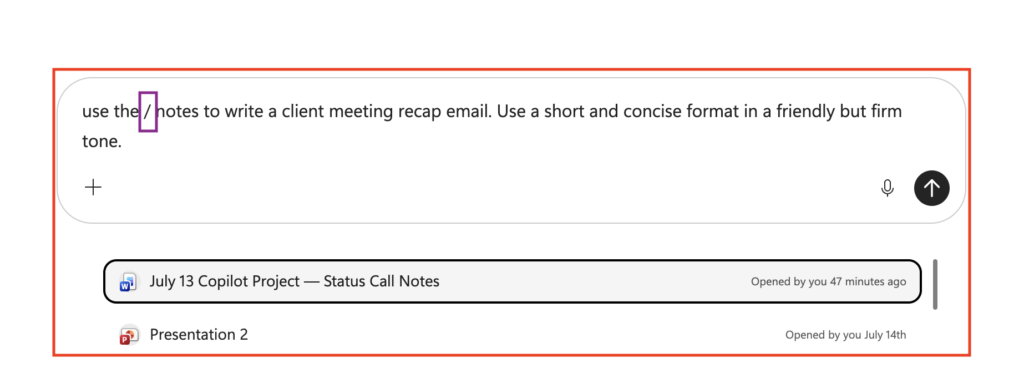
Hit / in the Copilot Chat box and a menu pops open. From there you can attach a file, dig through OneDrive, or pull in something a coworker shared with you, all without leaving the chat to go hunt for it.
Say you want Copilot to summarize a budget doc your coworker sent last week. Type it out in plain English and Copilot has to guess. Which doc? Which version? Does it even have access to the right one? Now instead, hit /, attach the actual file, done. Copilot’s not guessing anymore. It’s looking at exactly what you meant it to look at.
Honestly, if you’ve ever had to reword a Copilot prompt two or three times just to get it to reference the right thing, this is probably why. The fix was never a better sentence. It was skipping the sentence and just pointing at the file.
Second Copilot Chat Shortcut: The @ Key to Call Agents
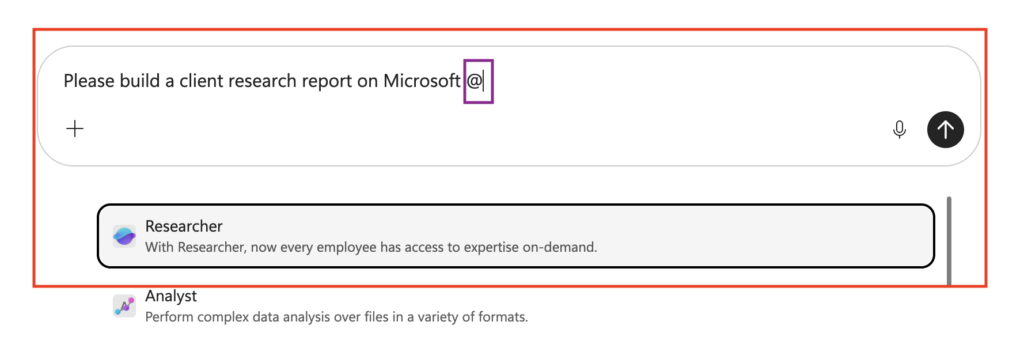
Type @ and you’ll see a list of agents pop up, Researcher, Analyst, and whatever else your org has set up. You can mention one right in your prompt instead of just typing a question and hoping Copilot figures out the right approach on its own.
It’s kind of like the difference between asking a random coworker for help versus walking straight over to the person who actually specializes in that thing. Need deep research pulled from a bunch of sources? @Researcher. Need to actually crunch some numbers? @Analyst. You’re not leaving it up to chance anymore. You’re pointing Copilot at the right tool before it even starts typing a response.
Making Them Work Together
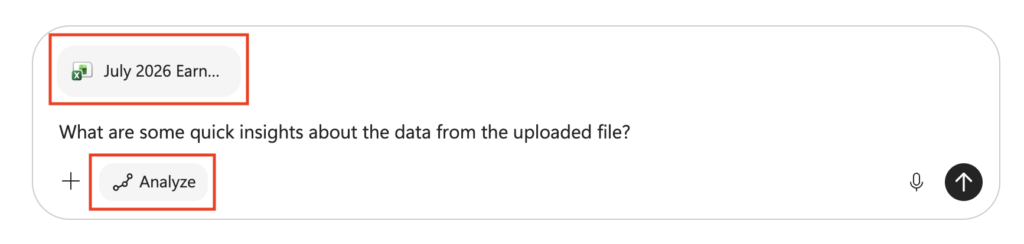
This is where it actually gets good. Attach your file with /, tag the agent you want handling it with @, then write your ask. In one prompt, you’ve told Copilot exactly what to look at and exactly who should be doing the looking, before it’s generated a single word.
If I had to guess why most people find Copilot’s answers underwhelming, it usually comes down to this: the prompt just didn’t give it enough to work with. These two shortcuts aren’t hidden in some settings menu. They’re sitting right there in the box you already type into every day.
So next time you open Copilot Chat, don’t just start typing. Try these Copilot Chat shortcuts, / or @, first. See what changes.